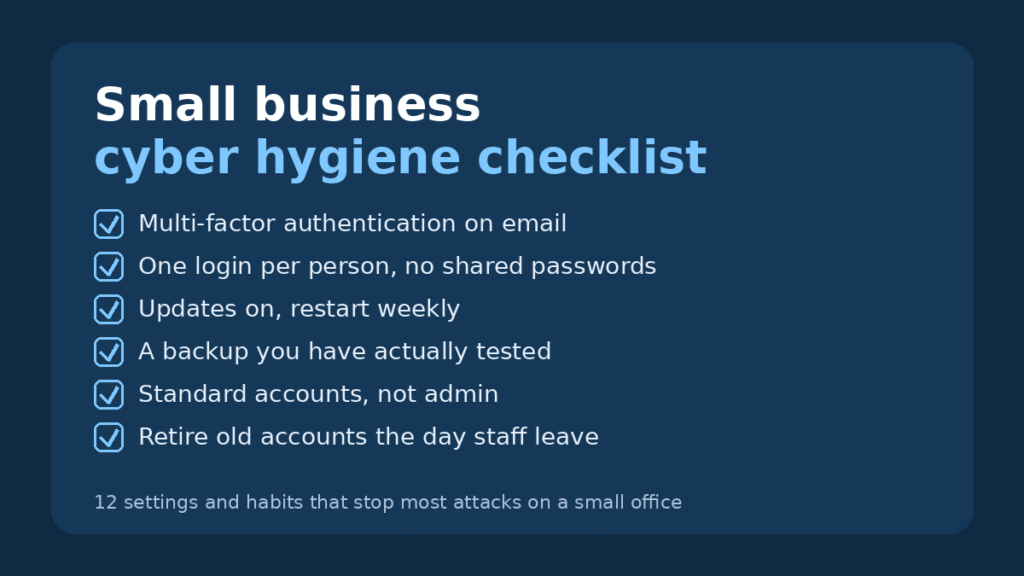
Most of the small businesses we support across Bentleigh East and bayside Melbourne are not attacked by anything clever. They are caught by a reused password, a staff member clicking a convincing invoice, or a computer that has not been updated since it came out of the box. The fix is not an expensive security product; it is a short list of settings and habits done properly and kept up. This is the small business cyber hygiene checklist we work through with new clients, in the order that gives the most protection soonest.
First: the four that stop most attacks
- Turn on multi-factor authentication everywhere it is offered. Email first, then accounting software, banking, cloud storage and your website host. A stolen password on its own then gets an attacker nowhere. Use an authenticator app rather than SMS where you can.
- Give every person their own login and stop sharing passwords. Shared logins cannot be revoked when someone leaves and make it impossible to see who did what. A password manager makes unique passwords painless; our guide to choosing and rolling out a password manager covers the practical steps.
- Let updates install. Windows, macOS, browsers and the handful of apps you rely on. Set them to automatic, and restart the machines at least weekly so the updates actually apply. Most of the vulnerabilities used against small businesses were patched months before they were exploited.
- Have a backup you have tested. Not a sync, a backup, with a copy that ransomware on the office network cannot reach. Our 3-2-1 backup plan explains how that looks for a business of two to twenty people.
Second: close the easy doors
- Remove admin rights from everyday accounts. Staff should work in standard accounts and be prompted for an admin password when something wants to install. This one change blocks a great deal of malware outright.
- Retire old accounts the day someone leaves. Email, cloud storage, Xero or MYOB, the website, the Wi-Fi password, remote access tools. Keep a one-page offboarding list so nothing is forgotten.
- Secure the Wi-Fi. A strong WPA2 or WPA3 password, a separate guest network for visitors and personal phones, and the router’s own admin password changed from the default. Check that remote management on the router is switched off.
- Protect email with the basics. SPF, DKIM and DMARC records so your domain cannot easily be spoofed, and the built-in spam and phishing protection in Microsoft 365 or Google Workspace turned on and configured rather than left at defaults.
Third: the habits that keep it working
- Train people to pause. Ten minutes in a team meeting on what a fake invoice, a fake delivery notice and a fake login page look like does more than any filter. Agree a rule: any request to change bank details is confirmed by phone, on a number you already have.
- Encrypt laptops and phones. BitLocker on Windows, FileVault on Mac, and a passcode on every phone with business email. A lost laptop then becomes an inconvenience rather than a data breach you may have to report.
- Know what you have. A simple list of every computer, phone, account and subscription the business uses. You cannot protect, update or cancel what you have forgotten about.
- Decide now what you would do. Who do you call, which accounts do you lock, where are the backups, and who tells the customers. Writing it on one page while calm is worth a great deal at 7am on a bad Monday.
What you can do yourself and where to get help
Items one to four are achievable in an afternoon by anyone comfortable with settings menus, and we would rather you did them today than waited for us. The router, email records, encryption and admin-rights changes are where small businesses most often get stuck or make a change that locks someone out, and those are a short remote or onsite job for us. We can work through the whole list with you over a remote support session, or if you would rather not think about it again, this checklist is simply part of what we maintain for clients under managed IT services.
How long it takes and what it costs
For a typical office of five to fifteen people the full checklist is one or two visits, with the multi-factor roll-out taking the most time because it involves each person’s phone. Nothing on the list requires buying new hardware unless the router is very old or a machine can no longer receive updates, in which case we will say so rather than work around it. The ongoing cost is mostly attention: a quarterly check that updates are applying, backups are restoring and departed staff are gone, which takes under an hour.
Frequently asked questions
We are tiny. Are we really a target?
Attacks on small businesses are automated and indiscriminate. The software does not know or care how big you are; it tries every email address and every exposed login it can find. Small businesses are hit because they are easier, not because they are chosen.
Do we need to buy antivirus software?
The protection built into Windows and macOS is now good, provided updates are on. For most small offices the money is better spent on multi-factor authentication, backups and a password manager. Larger teams or regulated industries may want managed endpoint protection on top, which we can advise on.
What is the single most important item?
Multi-factor authentication on email. Email is the master key to everything else, because password resets for every other service land there.
Does this cover our obligations under privacy law?
It covers the practical security side. Whether you have reporting obligations after a breach depends on your turnover and the data you hold, and that is a question for your adviser; a tested backup and encrypted devices make any such conversation far easier.
If you would like a second pair of eyes on your setup, Geeks 24×7 provides onsite and remote IT support across Bentleigh East and bayside Melbourne, 7 days from 5am to 11pm. Call 0421 388 876 and we will walk through this checklist with you, fix what needs fixing and leave you with a list of what is done.